Image: DJI
You’ve unfolded the arms, DJI Fly is connected, you push the sticks and the Mini 5 Pro just sits there. Or it lifts off, climbs a little and refuses to go any higher. It’s frustrating, but the drone almost always has a reason for holding back, and it usually tells you what that reason is.
This checklist is built from DJI’s Mini 5 Pro user manual, FAQ and release notes. Work down it in order and stop when you’re airborne.
Last checked: 18 October 2026, against DJI’s Mini 5 Pro user manual (v1.0) and release notes (latest entry dated 10 October 2026).
Quick answer
Read the aircraft status indicators and the warning in DJI Fly first. Slow red blinking means takeoff is disabled, and DJI says the app prompt will tell you why. The most common culprits are a low or sleeping battery, a protective part left on, a weak GNSS signal, not being logged in to DJI Fly, or a GEO zone.
Step 1: read the status lights and the app warning
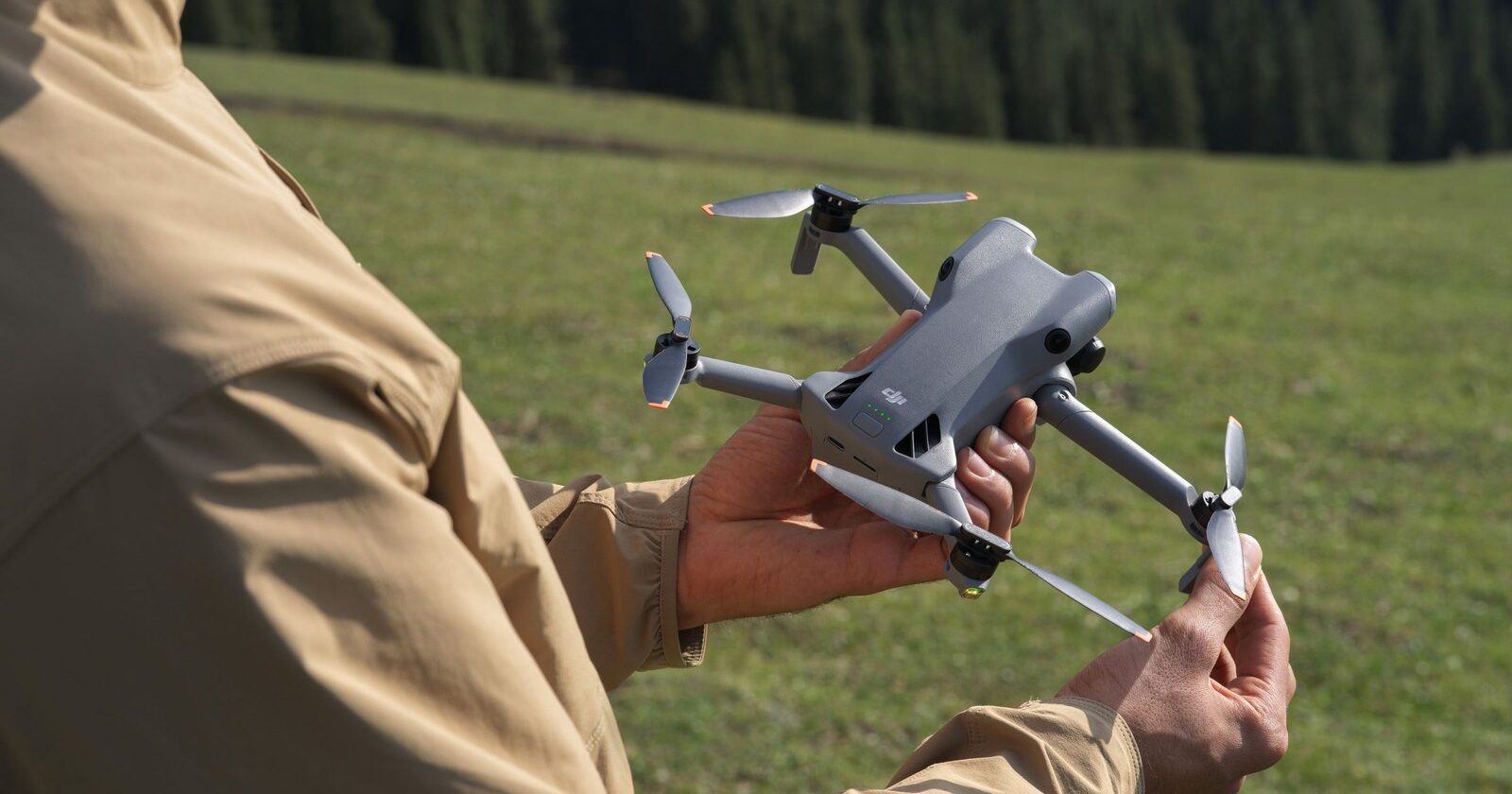
The Mini 5 Pro has two aircraft status indicators. When it’s powered on and the motors aren’t running, DJI’s manual says they show the following:
| Aircraft status indicators | What DJI says it means |
|---|---|
| Blinks red, yellow and green alternately | Powering on and running self-diagnostic tests |
| Blinks yellow four times | Warming up |
| Blinks green slowly | GNSS enabled (normal) |
| Blinks green twice, repeatedly | Vision systems enabled |
| Blinks yellow slowly | GNSS and vision system disabled (ATTI mode) |
| Blinks yellow quickly | Remote controller signal lost |
| Blinks red slowly | Takeoff is disabled (for example, low battery) |
| Blinks red quickly | Critically low battery |
| Solid red | Critical error |
| Blinks red and yellow alternately | Compass calibration required |
DJI’s own advice is simple: if the drone can’t take off while the indicators blink red slowly, view the warning prompt in DJI Fly. Read that message before you try anything else. If it’s still warming up (four yellow blinks), give it a moment.
Step 2: run DJI’s pre-flight checklist
A lot of “won’t take off” moments are on this list. DJI’s Mini 5 Pro pre-flight checklist says to make sure that:
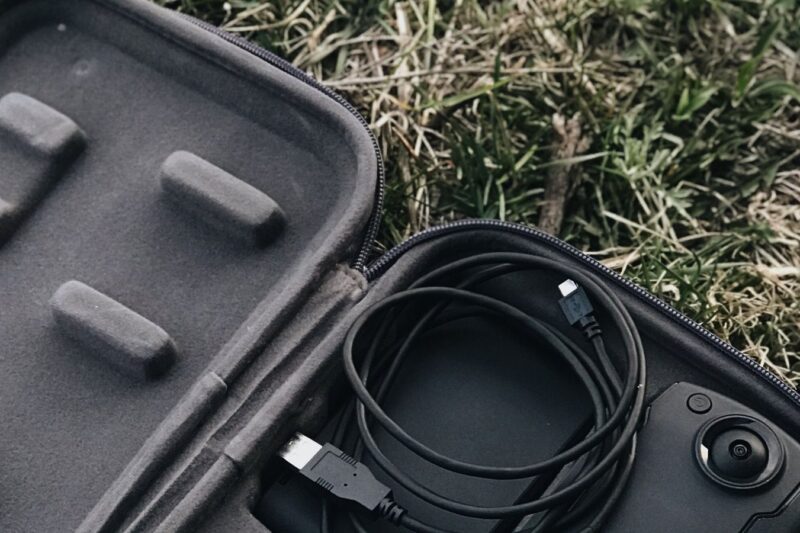
- Any protective parts are removed from the aircraft. DJI also says to take the storage cover off before you power on.
- The battery and propellers are mounted securely. The battery should click into place.
- The controller, phone and battery are fully charged.
- The arms and propellers are unfolded.
- The gimbal and camera are working normally.
- Nothing is obstructing the motors.
- DJI Fly is successfully connected to the aircraft.
- Camera lenses and sensors are clean.
- You’re using genuine DJI or DJI-authorised parts.
- The obstacle avoidance action, max altitude, max distance and auto RTH altitude are all set in DJI Fly.
Step 3: wake the battery up
The Mini 5 Pro battery can go to sleep, and a sleeping battery is an easy one to miss.
- First use: DJI’s setup steps say to press the power button once to activate the battery.
- Activated but not flown: the manual says that if the aircraft doesn’t take off after you activate the battery, the battery goes back into sleep mode once the aircraft has been powered off for a while. Press the power button or charge the battery to wake it again.
- After a long rest: DJI says the battery enters sleep mode during long-term storage, and charging it brings it out.
- Low battery is DJI’s own example of why takeoff gets disabled. Swap in a charged pack.
One Mini 5 Pro quirk to know: unfolding the right rear arm powers the drone on by default, but DJI says this doesn’t work while the aircraft’s USB-C port is in use. Unplug the cable, wait a few seconds and try again, or use the power button.
Step 4: use the right stick command
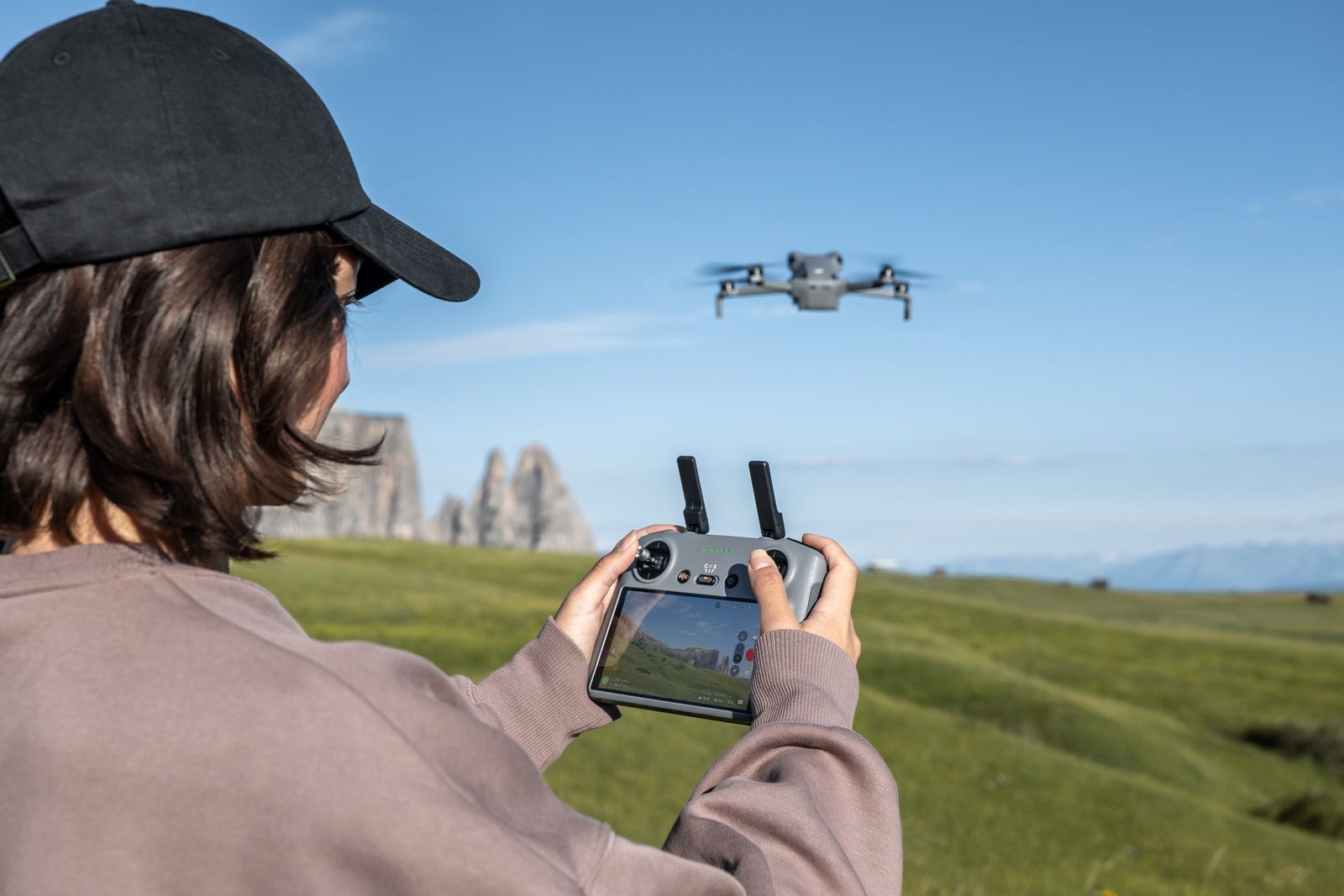
To start the motors manually, the Mini 5 Pro uses a Combination Stick Command (CSC). The diagram in DJI’s manual shows two options: push both sticks down and inwards, or both sticks down and outwards. Once the motors are spinning, release both sticks together.
If you’d rather not fiddle with sticks, use Auto Takeoff. In the DJI Fly camera view, tap the takeoff icon and, if conditions are safe, press and hold the button to confirm. The drone takes off and hovers above the ground.
Step 5: check GNSS, and where you’re taking off from
If the Mini 5 Pro takes off but won’t climb above about 30 m, a weak satellite signal is a likely reason. DJI’s manual says that with a weak GNSS signal:
- altitude is restricted to 30 m from the takeoff point if lighting is sufficient,
- altitude is restricted to 2 m above the ground if lighting isn’t sufficient and the 3D infrared sensing system is working,
- the limit lifts once the GNSS signal becomes strong (signal strength of 2 or more) and doesn’t come back for that flight even if the signal weakens again.
DJI also says tall buildings and large metal structures can affect the compass and GNSS. Its flight environment rules say not to take off from moving objects, from solid-coloured surfaces, or from surfaces with strong reflections such as a car roof. Move to an open, flat spot. Our Mini 5 Pro no GPS signal guide goes into more detail.
Step 6: make sure you’re logged in
DJI’s manual says flight is restricted to 30 m height and 50 m range when you’re not connected or logged into the app. It also says the app login is valid for 90 days, after which you need to connect to the internet and log in again. If the drone stops climbing at 30 m and the GNSS signal is strong, check your DJI Fly login.
Step 7: check for GEO zones
DJI’s GEO system limits takeoffs and flights in zones that may cause safety or security concerns, such as airports, prisons and some government sites. Check the map on DJI’s Fly Safe website. For Authorisation Zones, DJI offers Self-Unlocking through Fly Safe, and you can then sync the unlock licence in DJI Fly.
DJI’s map isn’t UK law, though. Whatever the app allows, you still need to follow the CAA’s rules and any airspace restrictions. Our guide to where you can fly a drone in the UK explains how to check.
Step 8: update and restart everything
DJI’s manual says to update the firmware whenever prompted, otherwise some features may not be available. At the time of writing, the latest release notes (10 October 2026) list aircraft firmware v01.00.0800 and DJI Fly v1.21.12. If an update is waiting, run it first. Our Mini 5 Pro firmware fix guide helps if it fails.
Then power off the drone and controller, close DJI Fly, power everything back on and try again. It’s DJI’s first fix for several problems, and it’s worth doing before you assume something is broken.
When to contact DJI support
Stop and contact DJI if:
- the status indicators show solid red, which DJI lists as a critical error,
- the drone won’t start even though the battery has charge (DJI’s troubleshooting advice for start-up problems),
- the motors won’t start after every step above,
- the drone has had a crash or hard knock. DJI says to check every part after any crash or serious impact and to contact an authorised dealer if there are problems.
DJI’s UK support and repair page lists online customer service and an English-language hotline. Have the drone’s serial number ready.
Frequently asked questions
Why are my Mini 5 Pro’s lights blinking red slowly?
DJI says it means takeoff is disabled, for example because of low battery. The warning prompt in DJI Fly gives the exact reason.
What is the stick command to start the motors?
Both sticks down and inwards, or both sticks down and outwards, as shown in DJI’s manual. Release both together once the motors spin.
Why won’t my Mini 5 Pro go above 30 m?
The two usual reasons in DJI’s manual are a weak GNSS signal, or flying while not connected or logged into DJI Fly.
My Mini 5 Pro won’t power on when I unfold the arm. Why?
DJI says unfolding the arm won’t power it on while the USB-C port is in use, and a battery that has gone back to sleep needs the power button pressed or a charge to wake it.
Still stuck?
- Mini 5 Pro not connecting to its controller
- Mini 5 Pro battery problems: charging, sleep mode and LED codes
- The full DJI Mini 5 Pro help hub
- Do I need a CAA licence for a DJI Mini?
Sources (checked 18 October 2026)
- DJI Mini 5 Pro User Manual v1.0 (EN): Preparing the Aircraft, Flight Limits (weak GNSS table), GEO Zones, Unlocking GEO Zones, Flight Environment Requirements, Pre-Flight Checklist, Auto Takeoff, Starting the Motors (CSC diagram), 5.2 Aircraft Status Indicators, 7.6 Maintenance Instructions, 7.7 Troubleshooting Procedures. dji.com/uk/mini-5-pro/downloads
- DJI Mini 5 Pro Release Notes, entry dated 10 Oct 2026. dji.com/uk/mini-5-pro/downloads
- DJI Fly Safe GEO Zone map: fly-safe.dji.com
- DJI UK support and repair: dji.com/uk/support/repair