Image: DJI
A firmware update that stops halfway, a “Firmware update failed” message or a DJI RC 2 stuck on a solid yellow light: a failed update on the Mini 4 Pro looks alarming, but in most cases it just needs retrying the right way.
This guide uses DJI’s own Mini 4 Pro manual, FAQ and release notes to explain why updates fail and how to get yours finished.
Last checked: 18 October 2026, against DJI’s Mini 4 Pro user manual, FAQ and release notes (latest entry dated 5 November 2025).
Quick fix
Restart the drone, the controller and DJI Fly, then try again. That’s DJI’s own advice in every Mini 4 Pro release note. Before you retry, charge the drone and controller, keep your phone or controller online, and stay in DJI Fly until the update finishes. If DJI Fly won’t do it, use DJI Assistant 2 (Consumer Drones Series) on a computer.
The latest Mini 4 Pro firmware
At the time of writing, DJI’s most recent Mini 4 Pro release notes are dated 5 November 2025 and list:
| Device | Firmware |
|---|---|
| Aircraft | v01.00.1100 |
| DJI RC 2 | v08.00.0000 |
| DJI RC-N2 | v01.01.0300 |
| DJI RC-N3 | v01.01.0300 |
| DJI RC Pro 2 | v01.00.0400 |
| DJI Fly (iOS and Android) | v1.19.0 |
DJI’s “What’s New” for that release just says it fixed some known issues. Check DJI’s Mini 4 Pro downloads page for anything newer.
Why Mini 4 Pro updates fail
DJI’s FAQ lists four causes:
- The drone or controller battery is below 20%.
- The drone or controller is powered off during the update.
- The network disconnects while the firmware downloads.
- Your phone switches to another app while the firmware downloads.
There are two more catches in the manual. You can’t update in DJI Fly if the controller isn’t linked to the drone, and an internet connection is required.
Step 1: restart and retry
DJI’s release notes say: if the update fails, restart the aircraft, the remote controller and DJI Fly (or DJI Assistant 2), and retry. Do that before anything else.
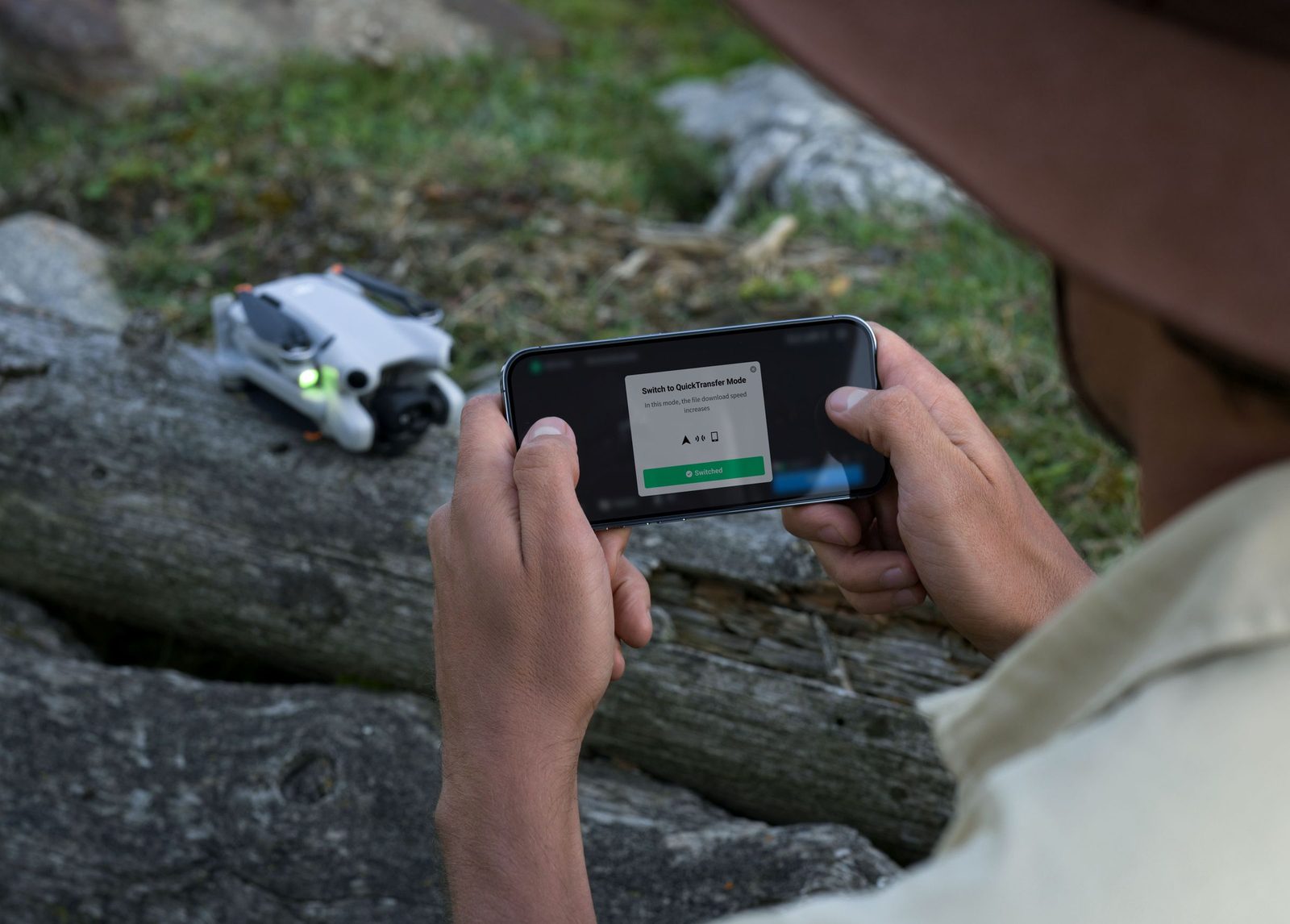
Step 2: get the conditions right
- Charge everything. The FAQ’s minimum is 20% for the drone and controller. If you’re going to use DJI Assistant 2, the manual asks for the flight battery to be at least 40% charged and the controller at least 20%. Charging both fully avoids the problem altogether.
- Use a reliable connection. Home Wi-Fi is better than a weak mobile signal in a field.
- Stay in DJI Fly. Don’t switch apps, take calls or let the phone lock while the firmware downloads.
- Check the link. If the controller and drone aren’t linked, see Mini 4 Pro not connecting to its controller first.
Step 3: let it finish
DJI’s FAQ says the aircraft restarts several times during an update and powers off by itself when it’s finished. The manual says the update takes about 10 minutes, and it’s normal for the gimbal to go limp, the status indicators to blink and the aircraft to reboot. Don’t power anything off while that’s happening, because that’s one of the causes of failure.
Step 4: update every battery
DJI’s manual says the battery firmware is included in the aircraft firmware, so make sure to update all batteries. If you have a Fly More Combo, put each battery in the drone in turn and check DJI Fly for an update prompt.
Step 5: use DJI Assistant 2 instead
If DJI Fly keeps failing, DJI’s manual describes updating the drone and the controller separately with DJI Assistant 2 (Consumer Drones Series) on a computer:
- Power on the device and connect it to the computer with a USB-C cable.
- Open DJI Assistant 2 (Consumer Drones Series) and log in with your DJI account.
- Select the device and click Firmware Update on the left.
- Select the firmware version.
- Wait for the firmware to download. The update starts automatically.
- Wait for it to complete.
DJI’s notes: keep the computer online throughout, don’t unplug the USB-C cable during the update and follow every step, or the update may fail.
DJI RC 2 showing solid yellow?
DJI’s manual says a solid yellow status LED on the RC 2 means the firmware update failed, and solid blue means it succeeded. If you see yellow, restart the RC 2 and retry, or update it on its own through DJI Assistant 2.
When to contact DJI support
If the update still fails after restarting everything, charging fully and trying DJI Assistant 2, or if the drone won’t power on or connect at all afterwards, contact DJI. DJI’s UK support page lists online customer service and an English-language hotline, Monday to Sunday, 8:00 to 20:00 UK time. Note down the firmware versions shown in DJI Fly before you call.
Frequently asked questions
How do I update my Mini 4 Pro firmware?
Connect the drone to the controller and DJI Fly will prompt you when new firmware is available. Follow the instructions to update the aircraft, controller, battery and other modules.
How long does a Mini 4 Pro firmware update take?
DJI says about 10 minutes, and the drone may restart several times.
Why is my Mini 4 Pro firmware update stuck?
The most common causes DJI lists are low battery, a lost network connection and switching apps during the download. Restart everything and retry.
Do I have to update the firmware?
DJI says to update whenever prompted. Recent updates are needed for newer controllers such as the RC Pro 2.
Still stuck?
- Mini 4 Pro not connecting to its controller
- Mini 4 Pro won’t turn on? Battery and power checks
- The full DJI Mini 4 Pro help hub
Sources (checked 18 October 2026)
- DJI Mini 4 Pro User Manual (EN): Firmware Update (Using DJI Fly, Using DJI Assistant 2), DJI RC 2 Status LED. dji.com/uk/mini-4-pro/downloads
- DJI Mini 4 Pro FAQ: “How do I update the firmware of DJI Mini 4 Pro?” and “What factors can lead to an update failure?” dji.com/uk/mini-4-pro/faq
- DJI Mini 4 Pro Release Notes, entries dated 13 May 2025 and 5 Nov 2025. dji.com/uk/mini-4-pro/downloads
- DJI UK support and repair: dji.com/uk/support/repair