Image: Burak Bahadır Büyükkılınç / Pexels
We may earn a commission if you buy through links on this page, at no extra cost to you. It never changes what we recommend. As an Amazon Associate, Drones Unplugged earns from qualifying purchases. Read our affiliate disclosure.
Your DJI Flip powers on, the arms are out, and the controller or your phone just won’t find it. It’s frustrating, but before you assume a fault, check the basics: activation, linking, and two devices trying to control the drone at once.
Work through the fixes below in order. Every step comes from DJI’s own Flip user manual and UK FAQ.
Last checked: 19 October 2026, against the DJI Flip User Manual (v1.2, May 2025) and DJI’s UK Flip FAQ.
Quick answer
First, charge the batteries: they ship in hibernation mode. Then make sure the Flip and your controller are both activated in DJI Fly with an internet connection. If the controller still won’t connect, re-pair it: in DJI Fly’s camera view, open the settings icon, go to Control > Re-pair to Aircraft, then press and hold the Flip’s power button for more than four seconds, with the controller within 0.5 m. If you’re using your phone instead, switch off every controller first.
Before you start: which controller have you got?
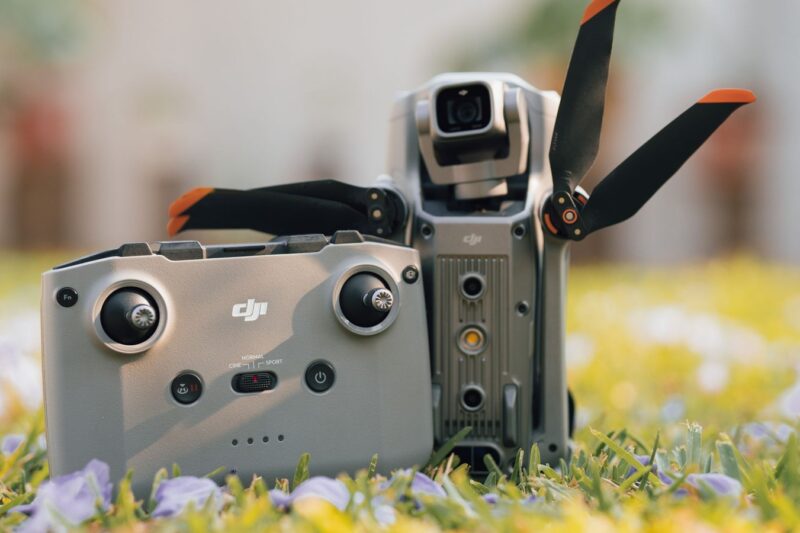
DJI’s UK FAQ lists three remote controllers that work with the Flip:
- DJI RC 2, which has its own screen,
- DJI RC-N3, which uses your phone as the screen,
- DJI RC-N2, which also uses your phone.
You can also fly the Flip from the DJI Fly app on your phone, with no controller, and DJI calls that Mobile App Control. The fixes are slightly different for each, so pick the section that matches how you’re flying.
Fix 1: wake the batteries up
DJI’s FAQ says Flip batteries are set to hibernation mode before shipping, for transport safety. A brand-new battery won’t power the drone until you’ve charged it.
Put the battery in the drone or the charging hub and connect the charger. Once it’s activated, press the power button once, then press and hold it for two seconds to turn the Flip on.
The Flip also powers on by itself when you unfold a rear arm. If the arms are folded, it may be counting down to switch off, which can look like a dropped connection.
Fix 2: activate the drone and the controller
The Flip needs activating before first use, and DJI’s manual says an internet connection is required. A Flip that hasn’t been activated won’t behave normally, however well it’s linked.
- With the RC-N3 (or RC-N2): connect your phone, with internet access, to the controller, open DJI Fly and connect to the Flip. Follow the prompts to activate it.
- With the RC 2: the controller itself needs activating first. Connect it to Wi-Fi or a phone hotspot, follow the prompts in DJI Fly to activate it, then connect it to the Flip and activate the drone.
Fix 3: check the RC-N3 cable (phone controllers only)
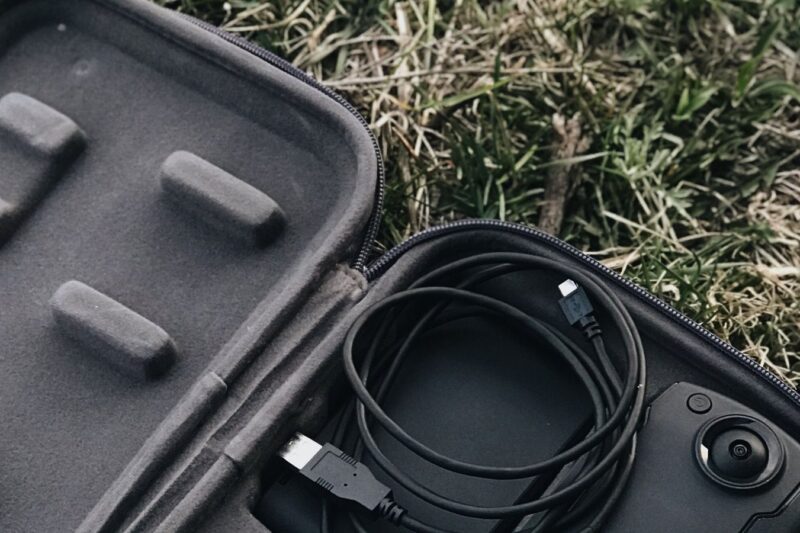
On the RC-N3, DJI’s manual says to plug the end of the cable without the remote controller logo into your phone. If you’ve got it the wrong way round, nothing will connect.
On an Android phone, if a USB connection prompt pops up, choose charge only. DJI says other options may cause the connection to fail.
Fix 4: re-pair the controller
If you bought a combo, DJI links the controller to the drone before it ships. If you bought them separately, replaced one, or the link has dropped, re-pair them. DJI’s steps are:
- Power on the Flip and the controller.
- Open DJI Fly.
- In camera view, tap the settings icon, then Control > Re-pair to Aircraft. The controller beeps, and on the RC 2 the status LED blinks blue.
- Press and hold the Flip’s power button for more than four seconds. The drone beeps and its battery LEDs blink in sequence.
- The controller beeps twice when linking works. On the RC 2, the status LED turns solid green.
Keep the controller within 0.5 m of the drone while you do this.
Two things to know. Linking a new controller automatically unlinks the old one from that drone. And DJI’s manual only gives linking steps for the RC 2 and RC-N3, so if you have an RC-N2, follow the prompts in DJI Fly.
Fix 5: read the RC 2’s status LED
The RC 2 has a status LED that tells you what’s wrong. From DJI’s manual:
| RC 2 status LED | What it means |
|---|---|
| Solid red | Disconnected from the aircraft |
| Blinking red | Aircraft battery is low |
| Solid green | Connected to the aircraft |
| Blinking blue | Linking to an aircraft |
| Solid yellow | Firmware update failed |
| Solid blue | Firmware update successful |
| Blinking yellow | Controller battery is low |
| Blinking cyan | Control sticks not centred |
Solid red means re-pair (Fix 4). Solid yellow means try the firmware update again (Fix 7). Blinking cyan just means the sticks aren’t centred, so check they’re screwed in and resting in the middle.
Fix 6: connecting with your phone only
If you fly the Flip from your phone, DJI’s manual lists a few specific requirements:
- Switch off any controller that’s linked to the Flip. If you don’t, the drone disconnects from the controller once your phone connects and the Controls view opens, which can be confusing.
- Power on the Flip and wait for its self-checks to finish.
- Turn on Bluetooth, Wi-Fi and location services on your phone.
- In DJI Fly, tap Connection Guide on the home screen, pick your drone, then Connect via Mobile Device.
- Select your Flip. The first time, press and hold the Flip’s power button to confirm.
Switching to a new phone? DJI says to turn off Bluetooth and Wi-Fi on the old phone first, then connect the new one.
Keeps dropping out? DJI’s FAQ says Wi-Fi is easily affected by other wireless signals, so connections are less stable in towns and cities than in parks or the countryside. Your body blocks the signal too, so keep your phone facing the drone and don’t turn your back on it. Phone control is also limited to 30 m height and 50 m distance, and DJI’s manual says Return to Home isn’t available in this mode.
Fix 7: update the firmware
When there’s an update, DJI Fly prompts you, and DJI recommends installing it whenever prompted. Two catches from the manual:
- You can’t update the firmware if the controller isn’t linked to the drone. So link first (Fix 4), then update.
- The battery firmware comes with the aircraft firmware, so update every battery, not just the one in the drone.
If an update keeps failing in the app, DJI Assistant 2 (Consumer Drones Series) on a computer can update the drone and the controller separately over USB-C. DJI says the update takes around 10 minutes, and that it’s normal for the gimbal to go limp and the drone to reboot during it. Don’t unplug the cable mid-update.
Still stuck?
If you’ve worked through every fix and the Flip still won’t connect, contact DJI Support through DJI’s UK support page before you buy a new controller. Have your drone’s serial number and your order details ready.
Shopping for a Flip with the screen controller, or adding spare batteries for longer days out?
Stick to genuine DJI Flip batteries. DJI’s manual says non-qualified replacement batteries can take the Flip outside its C0 weight limit.
Frequently asked questions
Why won’t my DJI Flip connect to my controller?
The usual causes are an unactivated drone or controller, a controller that needs re-pairing, or the drone already being connected to a phone. Re-pair through Control > Re-pair to Aircraft in DJI Fly.
How do I re-pair a DJI Flip?
In DJI Fly’s camera view, open settings, choose Control > Re-pair to Aircraft, then hold the drone’s power button for more than four seconds, with the controller within 0.5 m.
Why does my DJI Flip disconnect from my phone?
Wi-Fi interference, especially in towns, or your body blocking the signal. Keep your phone facing the drone. Also make sure no controller is switched on at the same time.
Why won’t my new DJI Flip turn on?
The batteries ship in hibernation mode. Charge the battery to wake it, then press, and press and hold, the power button.
Do I need to register a DJI Flip?
Yes. It weighs over 100 g and has a camera, so the CAA requires a Flyer ID and an Operator ID. See our Flyer ID vs Operator ID guide.
Keep reading
This guide is general information based on DJI’s published instructions. If you’re unsure, contact DJI Support before taking anything apart.
Sources (checked 19 October 2026)
- DJI Flip User Manual v1.2 (EN, 2025.05): preparing the RC 2 and RC-N3, activation, Mobile App Control, linking the remote controller, RC 2 status LEDs, firmware update. dji.com/uk/flip/downloads
- DJI Flip FAQ (UK): compatible controllers, battery hibernation, activation, Wi-Fi interference, app control limits, arm power-on. dji.com/uk/flip/faq
- DJI Flip specs (UK): weight under 249 g, class C0. dji.com/uk/flip/specs
- CAA, Registering to fly drones and model aircraft: caa.co.uk registering