Image: DJI
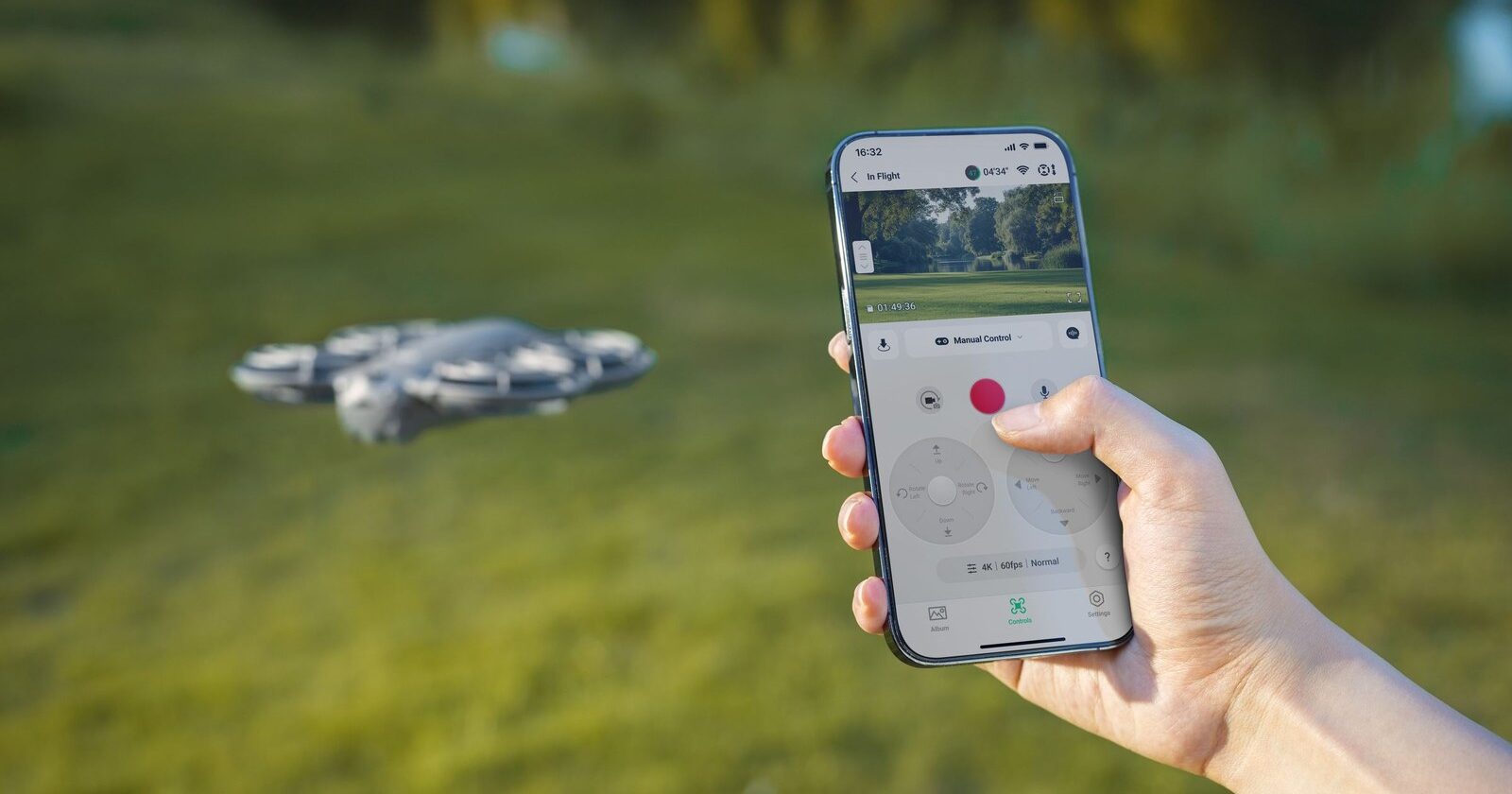
The DJI Neo 2 is designed to fly straight from your phone, with no controller needed. When DJI Fly can’t find it, or it connects and then drops, it’s usually down to one of a handful of settings on the phone, or another device that’s already holding the connection.
This guide follows DJI’s own Neo 2 connection steps, plus what to check if you’ve added a controller or goggles.
Last checked: 18 October 2026, against DJI’s Neo 2 user manual (v1.2), FAQ and release notes (latest entry dated 23 June 2026).
Quick fix
Power on the Neo 2 and wait for its self-checks to finish. On your phone, turn on Bluetooth, Wi-Fi and location services. In DJI Fly, tap Connection Guide (bottom right of the home screen), choose the Neo 2 and select Connect via Mobile Device. The first time you connect a phone, press and hold the Neo 2’s power button to confirm.
Step 1: activate the Neo 2 first
DJI says the Neo 2 must be activated in DJI Fly before first use, and activation needs an internet connection. Power the drone on (press, then press and hold the power button), tap Connection Guide in DJI Fly, choose the device model and follow the on-screen instructions. Make sure your phone has a working data or Wi-Fi connection at this point.
Also take the gimbal protector off before powering on. DJI says leaving it on may affect the drone’s self-diagnostics.

Step 2: connect your phone the way DJI describes
- Power on the Neo 2 and wait for the self-diagnostics to complete.
- On the phone, enable Bluetooth, Wi-Fi and location services.
- In DJI Fly, tap Connection Guide on the bottom right of the home screen, select the device model and select Connect via Mobile Device.
- Pick your Neo 2 from the search results. The Controls view appears once it’s connected.
- If it’s the first time this phone has connected, press and hold the Neo 2’s power button to confirm.
DJI’s manual says you can also connect over Wi-Fi from the QuickTransfer or Wi-Fi Devices panel on the DJI Fly home screen.
Step 3: free the connection from other devices
This is the one that catches most people. DJI’s manual says, before using the app to control the Neo 2:
- power off any remote controller, goggles or motion controller connected to the drone, so the live view can switch to the app,
- turn off Bluetooth and Wi-Fi on any other phone that has connected to the drone before, to stop it interfering or taking over the connection.
If you’re changing to a new phone, DJI says to disable Bluetooth and Wi-Fi on the phone that’s currently connected first, then connect the new one.
Step 4: fly where Wi-Fi can work
App control uses Wi-Fi. DJI’s FAQ gives a maximum Wi-Fi video transmission range of 500 m, measured in an open, unobstructed environment under FCC standards, and says real-world range varies with the environment and your phone. The manual adds:
- fly in an open, unobstructed area without Wi-Fi interference, or the app may disconnect,
- in app control, the maximum flight altitude is 60 m.
Busy places with lots of Wi-Fi networks, such as town centres, campsites and beaches in summer, are harder work for the connection.
Using a controller or goggles?
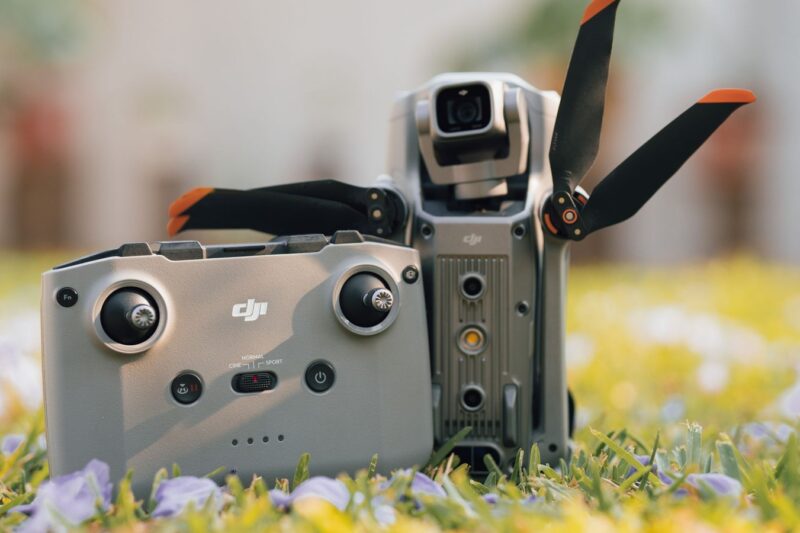
To use a DJI remote controller, goggles or the motion controller with the Neo 2, DJI says the DJI Neo 2 Digital Transceiver must be installed. If you bought a combo, the devices come pre-linked. Otherwise:
- fit the transceiver with the screwdriver supplied, with the drone powered off, because DJI says it doesn’t support hot-swapping,
- if linking fails, DJI says to check the transceiver screws are tight, then restart the drone,
- to link a remote controller, power both on, open DJI Fly and tap the settings icon, then Control > Re-pair to Aircraft, and press and hold the drone’s power button for more than four seconds with the controller within 0.5 m.
DJI’s FAQ lists the DJI RC-N3, RC-N2, RC 2, RC Motion 3 and FPV Remote Controller 3 as compatible remote controllers.
Step 5: update DJI Fly and the firmware
DJI says to update the firmware whenever DJI Fly prompts you, or some features may not be available. At the time of writing, DJI’s latest Neo 2 release notes (23 June 2026) list Neo 2 firmware V01.00.0700 and DJI Fly V1.21.0. If an update fails, see our Neo 2 firmware update guide.
When to contact DJI support
If the Neo 2 never appears in DJI Fly after a restart of the drone, the phone and the app, with every other device switched off, contact DJI. DJI’s UK support page lists online customer service and an English-language hotline, Monday to Sunday, 8:00 to 20:00 UK time.
Frequently asked questions
Why won’t my DJI Neo 2 connect to my phone?
Check Bluetooth, Wi-Fi and location are all on, use Connection Guide > Connect via Mobile Device in DJI Fly, and make sure no remote controller, goggles or other phone is still connected to the drone.
Do I need a controller for the DJI Neo 2?
No. You can fly it from your palm, with gestures or with the DJI Fly app on your phone. A remote controller or goggles need the Digital Transceiver fitted.
How far can the Neo 2 fly from my phone?
DJI quotes up to 500 m Wi-Fi video transmission range in ideal conditions, and a maximum altitude of 60 m in app control.
How do I connect the Neo 2 to a new phone?
Turn off Bluetooth and Wi-Fi on the old phone first, then connect the new one through Connection Guide in DJI Fly.
Still stuck?
- Neo 2 firmware update failed? How to fix it
- Neo 2 won’t turn on? Battery and power checks
- The full DJI Neo 2 help hub
Sources (checked 18 October 2026)
- DJI Neo 2 User Manual v1.2 (EN): Activation, Preparing the Aircraft, Preparing DJI Neo 2 Digital Transceiver (Installation, Linking), Mobile App Control (Notice, Connecting DJI Neo 2), Linking the Remote Controller, Firmware Update. dl.djicdn.com Neo 2 user manual
- DJI Neo 2 FAQ: video transmission range and compatible remote controllers. dji.com/uk/neo-2/faq
- DJI Neo 2 Release Notes, entry dated 23 Jun 2026. dji.com/uk/neo-2/downloads
- DJI UK support and repair: dji.com/uk/support/repair